FileField
The <FileField> component allows users to upload files to your application. It provides both a drag and drop area and a traditional file browser button, making it easy for users to select files in the way that works best for them.
File uploads are commonly used in forms where users need to attach documents, images, or other files such as resumes for job applications, profile pictures for accounts, or supporting materials for requests.
Anatomy
A <FileField> consists of a label, a drop zone where users can drag files, a zone label providing instructions, and an upload button for browsing files. Once files are selected, they appear as file items in a list, each showing the file name, size, and a remove button.
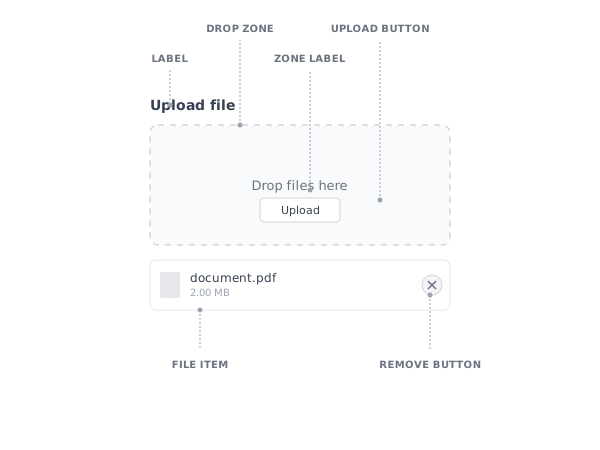
- Label: Identifies what the file upload field is for.
- Drop zone: The area where users can drag and drop files.
- Zone label: Instructional text guiding users to drag files.
- Upload button: Triggers the native file browser for selecting files.
- File item: Displays information about an uploaded file.
- Remove button: Allows users to remove a file from the list.
Appearance
The appearance of a component can be customized using the variant and size props. These props adjust the visual style and dimensions of the component, available values are based on the active theme.
Drop files here
| Property | Type | Description |
|---|---|---|
variant | - | The available variants of this component. |
size | - | The available sizes of this component. |
Usage
The <FileField> is useful whenever users need to attach files to a form or upload content to your application. It supports both drag and drop interaction and traditional file browsing, providing flexibility for different user preferences and device capabilities.
When users need to attach a single file, such as a profile picture or a document, use the basic <FileField>. Users can either drag a file into the drop zone or click the upload button to browse their files.
Drop files here
Uploading multiple files
When users need to upload several files at once, such as multiple photos for a gallery or supporting documents for an application, set the multiple prop to allow selecting and uploading multiple files.
This allows users to select multiple files in the file browser or drag several files into the drop zone at once.
Drop files here
Restricting file types
For specific use cases where only certain file types are appropriate, such as accepting only PDFs for document uploads or only images for profile pictures, use the accept prop to specify allowed file types. This helps prevent errors and guides users toward selecting appropriate files.
Drop files here
Drop files here
The accept prop accepts an array of MIME types (like 'application/pdf' or 'image/*') or file extensions (like '.pdf' or '.jpg'). Users will only be able to select files that match these criteria, and dropped files that don't match will be filtered out automatically.
Props
FileField
accept?readonly string[]['*']aria-describedby?string;
aria-details?string;
aria-label?string;
aria-labelledby?string;
dir?string;
disabled?boolean;
"false"getDropOperation?(types: DragTypes, allowedOperations: DropOperation[]) => DropOperation;
hidden?boolean;
inert?boolean;
label?ReactNode;
lang?string;
multiple?boolean;
"false"name?string;
onAnimationEnd?AnimationEventHandler<HTMLDivElement>;
onAnimationEndCapture?AnimationEventHandler<HTMLDivElement>;
onAnimationIteration?AnimationEventHandler<HTMLDivElement>;
onAnimationIterationCapture?AnimationEventHandler<HTMLDivElement>;
onAnimationStart?AnimationEventHandler<HTMLDivElement>;
onAnimationStartCapture?AnimationEventHandler<HTMLDivElement>;
onAuxClick?MouseEventHandler<HTMLDivElement>;
onAuxClickCapture?MouseEventHandler<HTMLDivElement>;
onClick?MouseEventHandler<HTMLDivElement>;
onClickCapture?MouseEventHandler<HTMLDivElement>;
onContextMenu?MouseEventHandler<HTMLDivElement>;
onContextMenuCapture?MouseEventHandler<HTMLDivElement>;
onDoubleClick?MouseEventHandler<HTMLDivElement>;
onDoubleClickCapture?MouseEventHandler<HTMLDivElement>;
onDrop?(e: DropEvent) => void;
onDropActivate?(e: DropActivateEvent) => void;
onDropEnter?(e: DropEnterEvent) => void;
onDropExit?(e: DropExitEvent) => void;
onDropMove?(e: DropMoveEvent) => void;
onGotPointerCapture?PointerEventHandler<HTMLDivElement>;
onGotPointerCaptureCapture?PointerEventHandler<HTMLDivElement>;
onHoverChange?(isHovering: boolean) => void;
onHoverEnd?(e: HoverEvent) => void;
onHoverStart?(e: HoverEvent) => void;
onLostPointerCapture?PointerEventHandler<HTMLDivElement>;
onLostPointerCaptureCapture?PointerEventHandler<HTMLDivElement>;
onMouseDown?MouseEventHandler<HTMLDivElement>;
onMouseDownCapture?MouseEventHandler<HTMLDivElement>;
onMouseEnter?MouseEventHandler<HTMLDivElement>;
onMouseLeave?MouseEventHandler<HTMLDivElement>;
onMouseMove?MouseEventHandler<HTMLDivElement>;
onMouseMoveCapture?MouseEventHandler<HTMLDivElement>;
onMouseOut?MouseEventHandler<HTMLDivElement>;
onMouseOutCapture?MouseEventHandler<HTMLDivElement>;
onMouseOver?MouseEventHandler<HTMLDivElement>;
onMouseOverCapture?MouseEventHandler<HTMLDivElement>;
onMouseUp?MouseEventHandler<HTMLDivElement>;
onMouseUpCapture?MouseEventHandler<HTMLDivElement>;
onPointerCancel?PointerEventHandler<HTMLDivElement>;
onPointerCancelCapture?PointerEventHandler<HTMLDivElement>;
onPointerDown?PointerEventHandler<HTMLDivElement>;
onPointerDownCapture?PointerEventHandler<HTMLDivElement>;
onPointerEnter?PointerEventHandler<HTMLDivElement>;
onPointerLeave?PointerEventHandler<HTMLDivElement>;
onPointerMove?PointerEventHandler<HTMLDivElement>;
onPointerMoveCapture?PointerEventHandler<HTMLDivElement>;
onPointerOut?PointerEventHandler<HTMLDivElement>;
onPointerOutCapture?PointerEventHandler<HTMLDivElement>;
onPointerOver?PointerEventHandler<HTMLDivElement>;
onPointerOverCapture?PointerEventHandler<HTMLDivElement>;
onPointerUp?PointerEventHandler<HTMLDivElement>;
onPointerUpCapture?PointerEventHandler<HTMLDivElement>;
onScroll?UIEventHandler<HTMLDivElement>;
onScrollCapture?UIEventHandler<HTMLDivElement>;
onTouchCancel?TouchEventHandler<HTMLDivElement>;
onTouchCancelCapture?TouchEventHandler<HTMLDivElement>;
onTouchEnd?TouchEventHandler<HTMLDivElement>;
onTouchEndCapture?TouchEventHandler<HTMLDivElement>;
onTouchMove?TouchEventHandler<HTMLDivElement>;
onTouchMoveCapture?TouchEventHandler<HTMLDivElement>;
onTouchStart?TouchEventHandler<HTMLDivElement>;
onTouchStartCapture?TouchEventHandler<HTMLDivElement>;
onTransitionCancel?TransitionEventHandler<HTMLDivElement>;
onTransitionCancelCapture?TransitionEventHandler<HTMLDivElement>;
onTransitionEnd?TransitionEventHandler<HTMLDivElement>;
onTransitionEndCapture?TransitionEventHandler<HTMLDivElement>;
onTransitionRun?TransitionEventHandler<HTMLDivElement>;
onTransitionRunCapture?TransitionEventHandler<HTMLDivElement>;
onTransitionStart?TransitionEventHandler<HTMLDivElement>;
onTransitionStartCapture?TransitionEventHandler<HTMLDivElement>;
onWheel?WheelEventHandler<HTMLDivElement>;
onWheelCapture?WheelEventHandler<HTMLDivElement>;
render?DOMRenderFunction<"div", DropZoneRenderProps>;
- You must render the expected element type (e.g. if
<button>is expected, you cannot render an<a>). - Only a single root DOM element can be rendered (no fragments).
- You must pass through props and ref to the underlying DOM element, merging with your own prop as appropriate.
slot?string | null;
null value indicates that the local props completely override all props received from a parent.translate?"yes" | "no";
width?WidthProp;
WidthProp"full"FileField.Item
children?ReactNode;
onRemove?() => void;